
 Switch to Kodezi Code
 Kodezi CLI
Code Editing
Learn how to edit code, use diff view, handle locked files, and take advantage of productivity shortcuts.
The editor provides a modern, productivity-focused coding environment.
Editor Features
The Code Editor is a full-featured, AI-aware IDE built for speed and clarity.
| Feature | Description |
|---|---|
| Syntax Highlighting | Language-specific color coding for HTML, CSS, JavaScript, TypeScript, JSX, and more. |
| Auto-completion | Intelligent, context-aware code suggestions powered by your project and Chronos-1. |
| Multiple Files | Open and edit any number of files simultaneously with tabbed interface. |
| Read-only Mode | Files being modified by Chronos-1 are temporarily locked (indicated by a lock icon) to prevent conflicts. |
You can manually edit any unlocked file, Chronos-1 works alongside you, not against you.
File Locks
When Chronos-1 is editing:
- The file becomes temporarily locked
- You will see a lock icon
- It unlocks automatically once the AI finishes
This prevents conflict between user edits and AI edits.
Diff View (AI Changes)
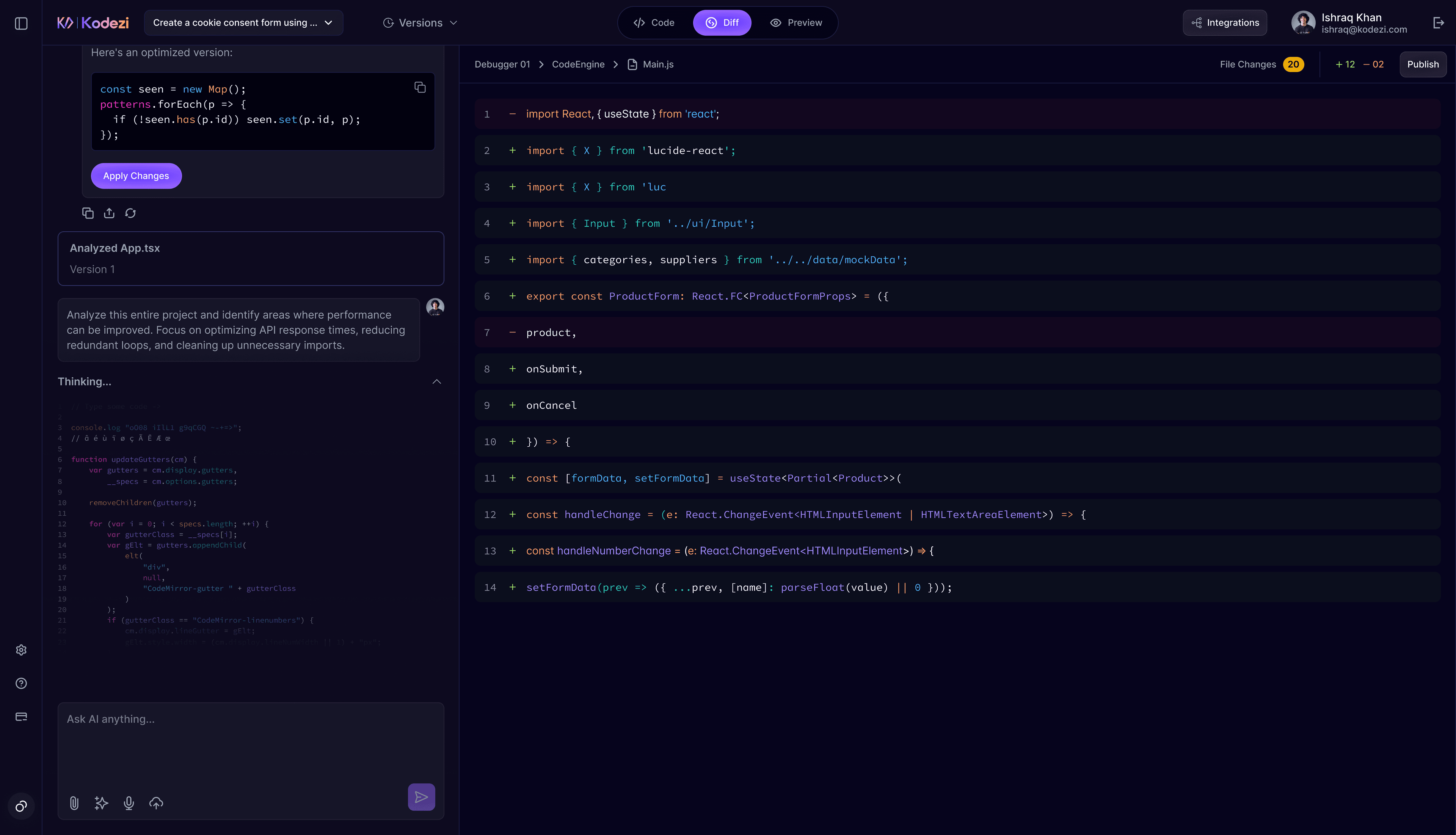
Use Diff View to inspect what the AI modified:
Steps:
- Start by selecting the file that Chronos-1 updated. You will see two tabs: Code and Diff.
- Click on the Diff tab to view the side-by-side comparison of your file before and after AI changes.
- Inside the Diff View, updates are highlighted clearly:
- 🟩 Added lines: new code inserted by Chronos-1
- 🟥 Removed lines: code that was deleted or replaced This helps you quickly identify what was changed and why.
- Accept or revert the changes
Keyboard Shortcuts
Editor
- Ctrl/Cmd + F - Find
- Ctrl/Cmd + S – Save
- Ctrl/Cmd + Z – Undo
- Ctrl/Cmd + Shift + Z – Redo
Navigation
- Ctrl/Cmd + B – Toggle sidebar
- Ctrl/Cmd + ` – Toggle terminal