
 Switch to Kodezi Code
 Kodezi CLI
Interactive Mode
Conversational AI assistant interface in your terminal
Interactive Mode is the core experience of Kodezi CLI, a conversational, AI powered development assistant that runs directly inside your terminal.
Use natural language to analyze code, generate changes, refactor, run commands, debug issues, and work iteratively with full project context.
Starting Interactive Mode
# Navigate to your project
cd /path/to/project

# Start kodezi-cli
kodezi
Once launched, you’ll see the interactive shell with a prompt ready for your instructions.
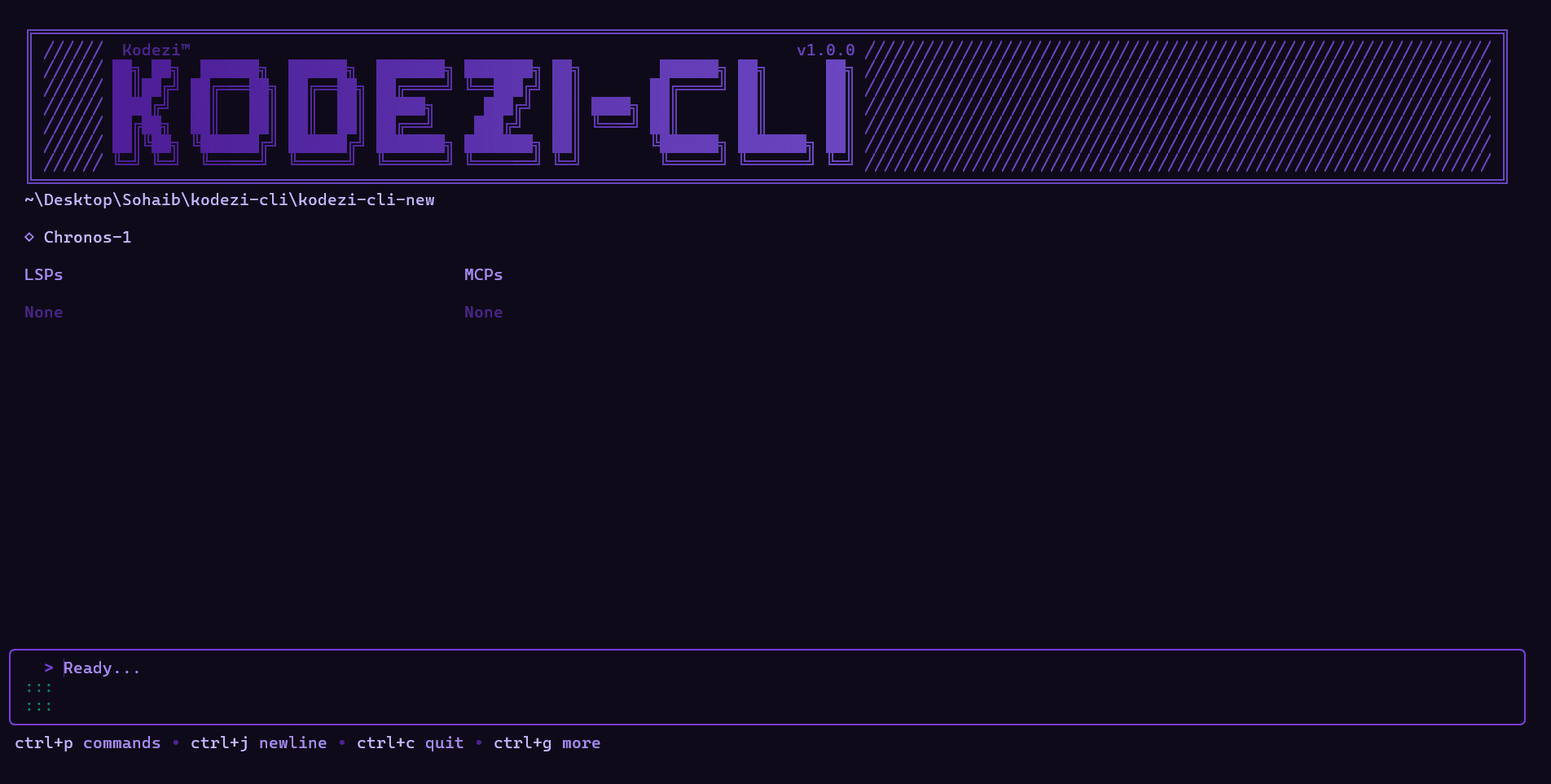 The Kodezi CLI interactive mode showing the splash screen and input prompt
Usage
Interactive mode accepts plain natural language, no special syntax:
> "Show me the authentication logic"
> "Add error handling to the login function"
> "Find and fix all TODO comments"
> "Run the tests"
> "Refactor the API service for better structure"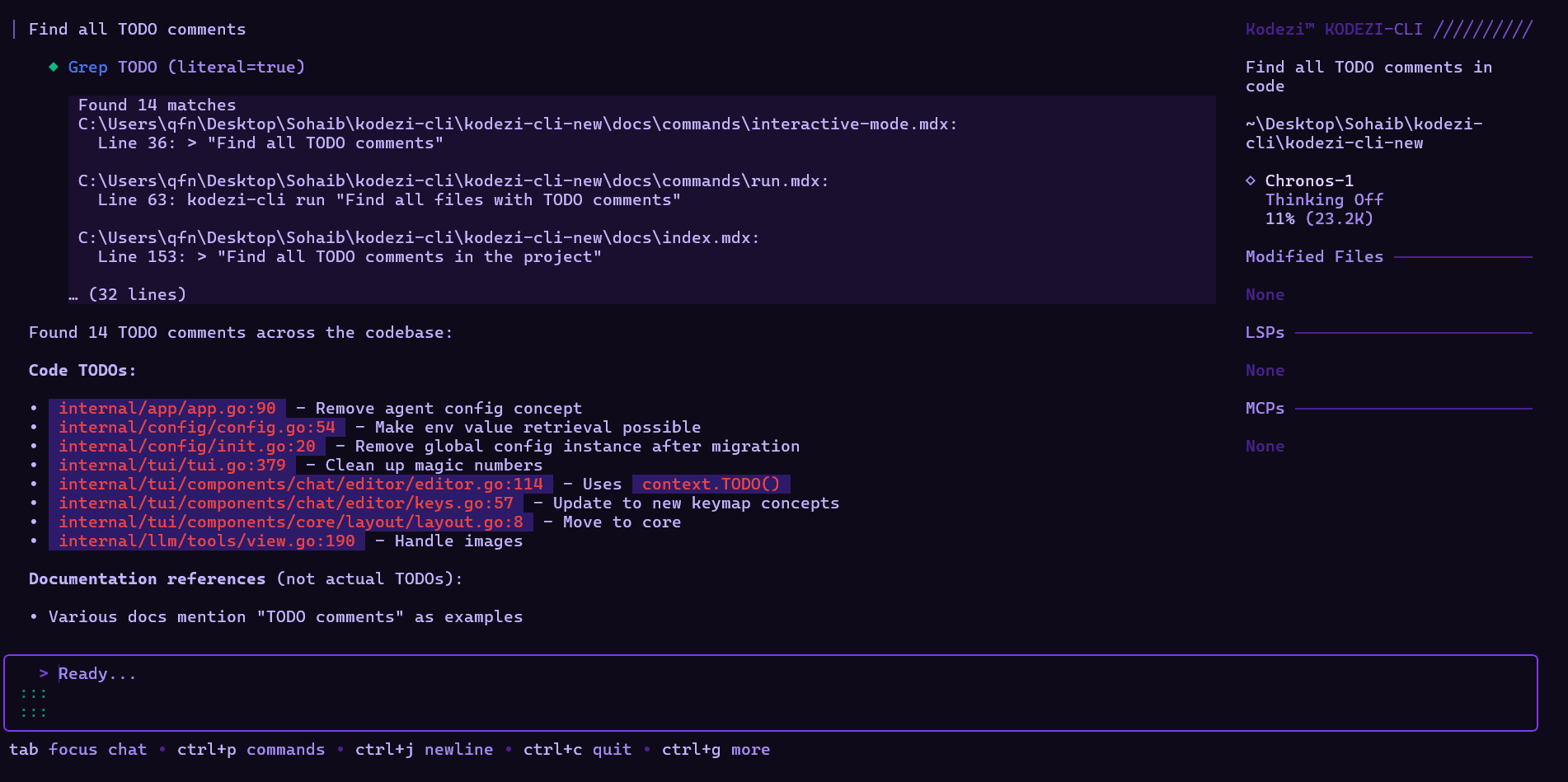 Example of a natural language conversation with the AI assistant
The AI maintains context throughout the conversation and can handle multi-step workflows.
What You Can Ask
Examples of supported tasks:
-
Code analysis:
"Review the user controller for security issues" -
Code generation:
"Create a new middleware for IP rate limiting" -
Debugging:
"Why is this function returning undefined?" -
Editing files:
"Add input validation to registerUser() in user.ts" -
Searching:
"Find all references to updateAccount" -
Running commands:
"Run npm test" -
Documentation:
"Generate a JSDoc comment for this function"
Example Workflow
Below is a realistic multi-step flow illustrating how developers use interactive mode.
Analyze Code
Ask the AI to examine your codebase and identify areas for improvement.
> "Analyze the authentication module for security issues"Kodezi reads your files, identifies patterns, and provides findings.
Review Suggestions
You’ll receive actionable recommendations with explanations:
- Missing validation
- Unhandled errors
- Unsafe patterns
- Inefficient structures
Apply Changes
Approve the AI's proposed modifications to implement improvements.
> "Yes, apply the suggested fixes"Verify Results
The AI confirms changes and shows what was modified in your files.
Key Features
Natural Conversation
No special syntax required, just talk naturally. The AI understands context from previous messages, remembers your project structure, and can reference earlier parts of the conversation.
You can ask follow up questions, make iterative improvements, and work through complex problems step-by-step without repeating context.
Permission System
Before performing any action that changes files or runs commands, Kodezi prompts for approval.
Permission Prompts
When the AI wants to modify files or run commands, it will ask for approval:
Example prompt:
⚠️ Permission Required
Tool: edit
File: auth.js
Action: Add error handling
Changes:
+ Line 42: try {
+ Line 48: } catch (error) {
...
Approve? [y/N]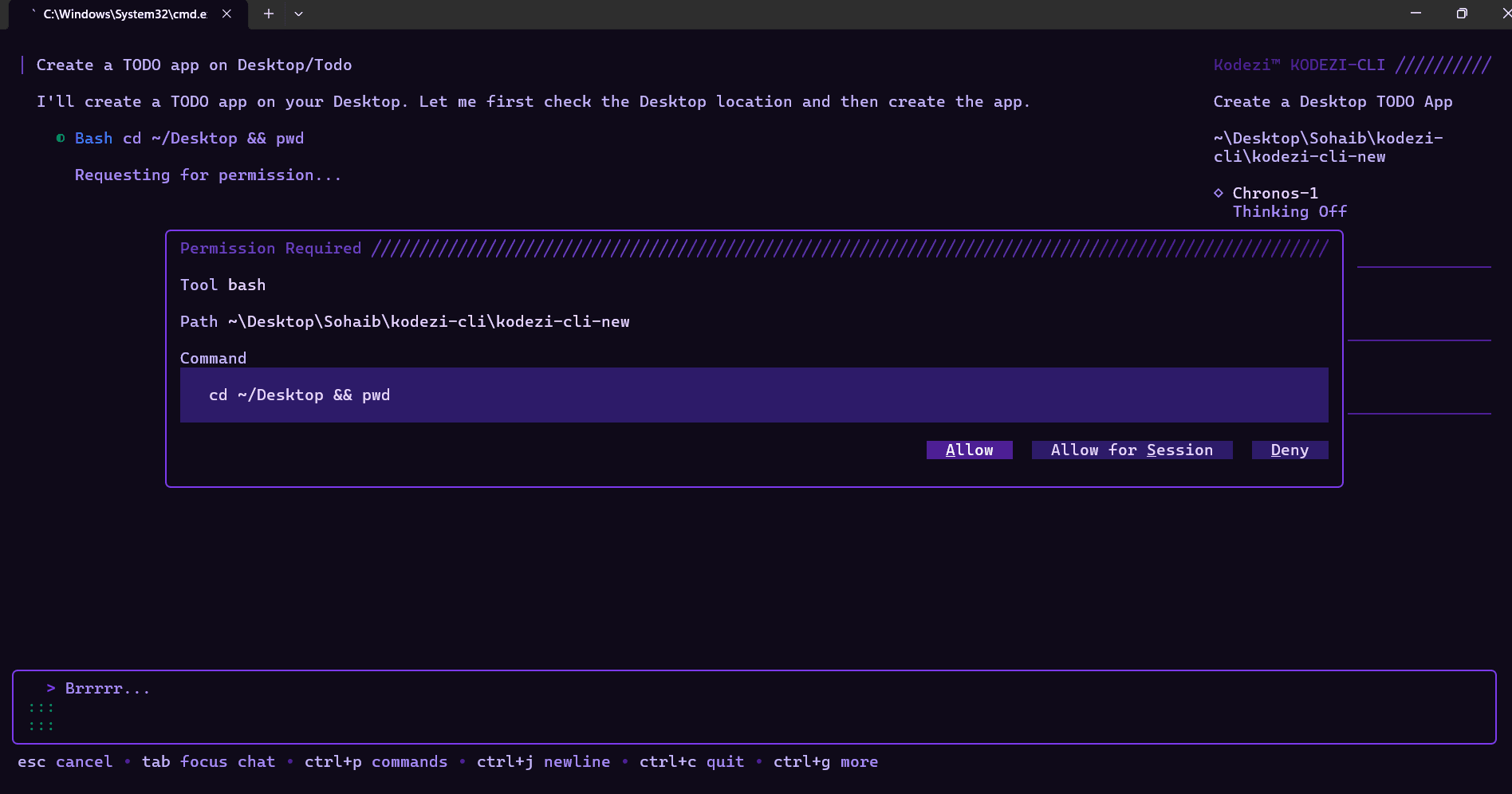 The permission prompt asking for approval before modifying files
Options:
y- Approve and executen- Deny and cancelv- View full details
This safety mechanism ensures you maintain control over all file modifications and command executions. Review the proposed changes carefully before approving.
Session Persistence
Automatic Session Saving
All messages and context are automatically saved. Exit and resume anytime the AI remembers everything from your previous session.
This allows you to:
- Close terminal anytime
- Reopen and continue where you left off
- Resume multi-day work seamlessly
- Maintain project memory
Sessions store references to your conversation, context, and file actions.
Command Line Flags
Interactive mode supports all global flags:
Auto Approve (Use with Caution)
kodezi --yolo
kodezi -y
Dangerous Mode, Use Only in CI
Yolo mode disables all permission prompts. Do NOT use this while actively coding, only in full automation pipelines.
Enable Debug Logging
kodezi --debug
kodezi -d
Shows underlying tool operations, LSP events, and MCP communication.
Custom Working Directory
kodezi --cwd /path/to/project
kodezi -c /path/to/project
Useful when running tools globally or integrating with external scripts.
Custom Data Directory
kodezi --data-dir /custom/path
kodezi -D /custom/path
See kodezi --help for all flags.
Exiting Interactive Mode
You can exit anytime using:
> exitOr:
- Ctrl + C
- Ctrl + D
Sessions are automatically saved and can be resumed later.
Related Commands
- kodezi run → For one-off automated tasks
- kodezi auth → Manage authentication
- kodezi logs → View logs, history, and debug output
- Configuration → Customize CLI behavior